
The Top 25 Fun Google Tricks
Posted By : Govinda Baniya
 1. Google Gravity
Quite simply, this is Earth-bound physics “infused” into Google’s interface: with “gravity,” the visual elements you commonly find on the interface, such as the search bar, the “I’m feeing lucky” button, and everything else fall down like a stack of bricks on the bottom of the browser. You can even “pick up” and “throw” the search results at the “walls” or just simply mess with them. This is no longer implemented on Google, but you can still see how it worked through the link below.
 7. Google Hacker
Those who are familiar with the so-called language of hackers (1337 5p3@k or “leet speak”) may love using this Google trick to amuse haxor pals or confound the squares. Sure, the trick isn’t much trickier than swapping letters for moderately analogous numbers or ASCII characters — e.g. “G” becomes “6″, “E” becomes “3″, “N” becomes “||”, etc — But it’s still fun symbol-play, and still somehow feels like a secret language, despite that we all now w00t every time we are overcome with joy.
9. Google Rainbow
Like a handful of the other Fun Google Tricks included in this list, this third-party website that has no official affiliation with Google but only offers its two cents in letting people experience the search engine in a delightful way. If you like colors, this site delivers it—although it may remind you more of the internet circa early-1990s, with all its animated GIFs.
 12. Google Tilt or Askew
Typing the word “tilt” or “askew” on Google (specifically if you’re using the Chrome or Safari browser) commands the search engine to “tilt” the whole screen slightly to the right.
Maybe to help dispel the wacky notion that geeks are boring, or maybe to prove that Search isn’t all work and no play and Sergei and Larry are by no means dull boys, Google every-once-in-a-Google-Moon leavens their spam-fighting and user experience-enhancing with some honest-to-goodness, good clean Fun Google Tricks.
You probably know a few of these memes already — passed around the intarwebz ad infinitum as they often are — those quirky little tricks and pranks you never thought you’d see from such a serious search engine. Occasionally, we searchers stumble upon some quietly placed “Google Easter Egg,” or sometimes Google’s PR peeps publicize some brand spanking new Fun Google trick that spices up the user experience as much as it enhances it. Whichever it is, these Google Tricks are fun darnit, so have fun with them.
Meme junkies and time-wasters that we are here at Google Tricks, we’ve had our fair share of good times. And because we’re not greedy, and because we like to organize as a way to procrastinate, we’ve done the heavy lifting of gathering what we consider to be the Top 25 Fun Google tricks right here in one glorious and easy-to-read location on this page. If you like the cut of our jib, perhaps you’d be so kind as to like us on the you-know-what-book, or add a one to our G+ thingie. We’d be so happy and thankful if you did.
 1. Google Gravity
Quite simply, this is Earth-bound physics “infused” into Google’s interface: with “gravity,” the visual elements you commonly find on the interface, such as the search bar, the “I’m feeing lucky” button, and everything else fall down like a stack of bricks on the bottom of the browser. You can even “pick up” and “throw” the search results at the “walls” or just simply mess with them. This is no longer implemented on Google, but you can still see how it worked through the link below.
2. Let me Google that for you
LMGTFY or Let Me Google That for You is a somewhat tongue-in-cheek service made for those of us who are too lazy to use Google. Upon entering a search query, instead of results, you get a link that you can then mail to your lazy recipient.
LMGTFY or Let Me Google That for You is a somewhat tongue-in-cheek service made for those of us who are too lazy to use Google. Upon entering a search query, instead of results, you get a link that you can then mail to your lazy recipient.
Clicking on the link launches the actual search: thus, in this perigrinatory manner, you have Googled it for them. All they have to do is click the link. A beautiful example of technology making things more complicated for us.
3. Google Chuck Norris
There was a time when the internet raged with all imaginable Chuck Norris jokes. So naturally, Google itself dipped its hand in the meme with the Chuck Norris Google Trick. Search “Chuck Norris,” and Google returns a familiar Chuck Norris joke: “Google won’t search for Chuck Norris because it knows you don’t find Chuck Norris, he finds you.”
There was a time when the internet raged with all imaginable Chuck Norris jokes. So naturally, Google itself dipped its hand in the meme with the Chuck Norris Google Trick. Search “Chuck Norris,” and Google returns a familiar Chuck Norris joke: “Google won’t search for Chuck Norris because it knows you don’t find Chuck Norris, he finds you.”
4. God on Google Earth
Sometime in 2010, people around the world went “God crazy” when Google Earth supposedly had taken a “snapshot” of “divine beings” while crossing a mountain zone in Switzerland. There’s no definite answer, of course, but the buzz it created was testament to how the entire online community could get excited over a blurry photo, like they do with pictures of cats.
Sometime in 2010, people around the world went “God crazy” when Google Earth supposedly had taken a “snapshot” of “divine beings” while crossing a mountain zone in Switzerland. There’s no definite answer, of course, but the buzz it created was testament to how the entire online community could get excited over a blurry photo, like they do with pictures of cats.
5. Google Pac-man
A treasure-trove of fun Google tricks won’t be complete without mentioning Google’s Pac-Man doodle. On May 22, 2010, the 30th anniversary of the classic game, people around the world woke up to a search engine sporting an actually playable mini-version of Pac-Man. And naturally, hundreds of millions of people spent hours playing the game, basically slowing down productivity to a halt.
A treasure-trove of fun Google tricks won’t be complete without mentioning Google’s Pac-Man doodle. On May 22, 2010, the 30th anniversary of the classic game, people around the world woke up to a search engine sporting an actually playable mini-version of Pac-Man. And naturally, hundreds of millions of people spent hours playing the game, basically slowing down productivity to a halt.
6. Google Mirror
This fun Google trick simply displays a mirror image of everything you might see when doing a search on Google.
This fun Google trick simply displays a mirror image of everything you might see when doing a search on Google.
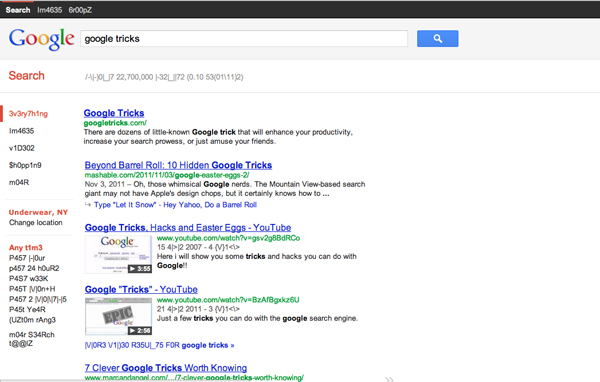 7. Google Hacker
Those who are familiar with the so-called language of hackers (1337 5p3@k or “leet speak”) may love using this Google trick to amuse haxor pals or confound the squares. Sure, the trick isn’t much trickier than swapping letters for moderately analogous numbers or ASCII characters — e.g. “G” becomes “6″, “E” becomes “3″, “N” becomes “||”, etc — But it’s still fun symbol-play, and still somehow feels like a secret language, despite that we all now w00t every time we are overcome with joy.
8. Google Barrel Roll
A Fun Google trick that is still accessible today, the barrel roll means exactly as it says: make Google do a barrel roll. Simply type “Do a barrel roll” into the search bar and Google dutifully obeys. Warning: This Especially Fun Google Trick is known to make babies cry and grown men squeal with delight.
A Fun Google trick that is still accessible today, the barrel roll means exactly as it says: make Google do a barrel roll. Simply type “Do a barrel roll” into the search bar and Google dutifully obeys. Warning: This Especially Fun Google Trick is known to make babies cry and grown men squeal with delight.
 |      |
9. Google Rainbow
Like a handful of the other Fun Google Tricks included in this list, this third-party website that has no official affiliation with Google but only offers its two cents in letting people experience the search engine in a delightful way. If you like colors, this site delivers it—although it may remind you more of the internet circa early-1990s, with all its animated GIFs.
10. Google Sphere
Google Sphere turns every little element you commonly see on Google’s homepage into a swirling “sphere.” It’s pretty cool, but it’s no longer implemented on Google. To see how it once worked, just visit the link below.
Google Sphere turns every little element you commonly see on Google’s homepage into a swirling “sphere.” It’s pretty cool, but it’s no longer implemented on Google. To see how it once worked, just visit the link below.
11. Google Spam
Probably not an actual Google trick but more a manifestation of how Google offers users related information. In the folders in your Gmail account, you usually see a one-line text advertisement from Adsense. But in the Spam folder, what you’ll see is a real Spam recipe—yes, it’s a recipe for something you can actually eat.
Probably not an actual Google trick but more a manifestation of how Google offers users related information. In the folders in your Gmail account, you usually see a one-line text advertisement from Adsense. But in the Spam folder, what you’ll see is a real Spam recipe—yes, it’s a recipe for something you can actually eat.
 12. Google Tilt or Askew
Typing the word “tilt” or “askew” on Google (specifically if you’re using the Chrome or Safari browser) commands the search engine to “tilt” the whole screen slightly to the right.
13. Dragon Slayer
Those who use Google Docs will find this mildly amusing. If you create or open any spreadsheet, pressing Shift+F12 pops up a message that says: “Dragon slain! Congratulations, you’ve slain the dragon! ]B=8}”.
Those who use Google Docs will find this mildly amusing. If you create or open any spreadsheet, pressing Shift+F12 pops up a message that says: “Dragon slain! Congratulations, you’ve slain the dragon! ]B=8}”.
14. Google Ninja
Who doesn’t love ninjas? Google definitely does. If you’re using your Google Reader feed, press the keys “up, up, down, down, left, right, left, right, B, A” and a ninja (or a couple of them) appear!
Who doesn’t love ninjas? Google definitely does. If you’re using your Google Reader feed, press the keys “up, up, down, down, left, right, left, right, B, A” and a ninja (or a couple of them) appear!
15. All the Google Doodles
Over the years, Google has released several of its “doodles”—a temporary re-design of the Google logo made as a tribute to a historical event or the birthday of someone who has changed the world for the better. Through the link below, you’ll find all of the Google Doodles, not only the American versions.
Over the years, Google has released several of its “doodles”—a temporary re-design of the Google logo made as a tribute to a historical event or the birthday of someone who has changed the world for the better. Through the link below, you’ll find all of the Google Doodles, not only the American versions.
16. Recursion
Type “recursion” into the Google search bar and Google in return asks, rather recursively: “Did you mean recursion?”
Type “recursion” into the Google search bar and Google in return asks, rather recursively: “Did you mean recursion?”
17. Google’s Nessie
Use the beach theme with your iGoogle homepage, then very patiently sit there and wait until the clock strikes 3:14 AM. Or you can just more the clock forward and see the monster” that comes out. If you actually waited several hours until 3:14 AM, finally seeing the monster might not totally amuse you.
Use the beach theme with your iGoogle homepage, then very patiently sit there and wait until the clock strikes 3:14 AM. Or you can just more the clock forward and see the monster” that comes out. If you actually waited several hours until 3:14 AM, finally seeing the monster might not totally amuse you.
18. Flight Simulator
What started as an Easter egg became so well-loved that Google eventually turned it into a regular feature of Google Earth. Just click Tools > Enter Flight Simulator, and you’re off to make a round-the-world tour. It would have been more awesome if Google Earth also has a “rocket launcher” feature with unlimited ammo to go with it, but maybe next time.
What started as an Easter egg became so well-loved that Google eventually turned it into a regular feature of Google Earth. Just click Tools > Enter Flight Simulator, and you’re off to make a round-the-world tour. It would have been more awesome if Google Earth also has a “rocket launcher” feature with unlimited ammo to go with it, but maybe next time.
19. Google MentalPlex
One of the earliest (if not, the earliest) Google April Fool’s joke (this one surfaced in 2000) is the Google MentalPlex. Instead of typing their queries into the search bar, unwitting users were “invited” to just “think” their questions while gazing intently into the MentalPlex circle (apparently to allow Google enough time to “read” your brain signals and transform them into actual search engine queries), then click into the circle to see the results. Even Google’s CEO and co-founder Larry Page called MentalPlex “a quantum leap in finding what you are looking for on the Internet. Typing in queries is so 1999.” It was fun. Especially if you remember that this was the early days of Google, long before the billion-dollar behemoth called Adsense and what-have-you.
One of the earliest (if not, the earliest) Google April Fool’s joke (this one surfaced in 2000) is the Google MentalPlex. Instead of typing their queries into the search bar, unwitting users were “invited” to just “think” their questions while gazing intently into the MentalPlex circle (apparently to allow Google enough time to “read” your brain signals and transform them into actual search engine queries), then click into the circle to see the results. Even Google’s CEO and co-founder Larry Page called MentalPlex “a quantum leap in finding what you are looking for on the Internet. Typing in queries is so 1999.” It was fun. Especially if you remember that this was the early days of Google, long before the billion-dollar behemoth called Adsense and what-have-you.
20. Google Anagram
Step 1: Type “anagram” into the Google search bar. Step 2: Google asks if you in fact mean “nag a ram.” Step 3: Proceed to LOL.
Step 1: Type “anagram” into the Google search bar. Step 2: Google asks if you in fact mean “nag a ram.” Step 3: Proceed to LOL.
21. The disappearing “OO”
This is not really a Google fun trick per se, but you can wow your clueless friend with this little “magic.” Click anywhere on the white space of the Dark Arts page (URL in linked title above), then pretend to rub your two fingers on the two OO’s on the Google logo for 2 to 3 seconds, and the O’s will vanish. To bring it back, do the same thing: Click anywhere again and the OO’s will reappear, after which you will be redirected to the real Google.
This is not really a Google fun trick per se, but you can wow your clueless friend with this little “magic.” Click anywhere on the white space of the Dark Arts page (URL in linked title above), then pretend to rub your two fingers on the two OO’s on the Google logo for 2 to 3 seconds, and the O’s will vanish. To bring it back, do the same thing: Click anywhere again and the OO’s will reappear, after which you will be redirected to the real Google.
22. Annoying Google
The “Annoying Google” trick is not really annoying under normal circumstances. Even if you’re in a hurry, Annoying Google’s way of messing up the words as you type them (randomly changing from upper-case to lower-case) is not really annoying. But if you want to see this in action and determine for yourself if it’s really annoying or simply mildly amusing, visit the link below.
The “Annoying Google” trick is not really annoying under normal circumstances. Even if you’re in a hurry, Annoying Google’s way of messing up the words as you type them (randomly changing from upper-case to lower-case) is not really annoying. But if you want to see this in action and determine for yourself if it’s really annoying or simply mildly amusing, visit the link below.
23. Epic Google
Epic Google is Google on steroids — not the enhanced performance however, just the obscene bulk. Once the page loads, the logo, search bar, “Search” and “I’m Feeling Excessive” buttons, all swell until they either float off the page or you type a search and get the heck outta there.
Epic Google is Google on steroids — not the enhanced performance however, just the obscene bulk. Once the page loads, the logo, search bar, “Search” and “I’m Feeling Excessive” buttons, all swell until they either float off the page or you type a search and get the heck outta there.
24. Weenie Google
Weenie Google is the flip side of Epic Google. Once the page loads, the logo, search bar, “Search” and “I’m Feeling Inadequate” buttons,immediately begin to shrink to inscrutable and barely-usable sizes. Is fun, no?
Weenie Google is the flip side of Epic Google. Once the page loads, the logo, search bar, “Search” and “I’m Feeling Inadequate” buttons,immediately begin to shrink to inscrutable and barely-usable sizes. Is fun, no?
25. Chicken Rolling
“Rick-rolling” is a popular prank that involves redirecting the unwitting user to a video of music artist Rick Astley singing one of his hit songs (most often “Never Gonna Give You Up”). Chicken-rolling, on the other hand, is like Rick-rolling, but with one dancing man eating fried chicken legs. To subject your unwitting friend to this prank, type the code “2204355” then click “I’m feeling lucky.” See what happens.
“Rick-rolling” is a popular prank that involves redirecting the unwitting user to a video of music artist Rick Astley singing one of his hit songs (most often “Never Gonna Give You Up”). Chicken-rolling, on the other hand, is like Rick-rolling, but with one dancing man eating fried chicken legs. To subject your unwitting friend to this prank, type the code “2204355” then click “I’m feeling lucky.” See what happens.
Whew. What a lot of fun that list provides.
A Geek’s Wishlist – 10 Things We Want To Do With Google Glass
Posted By : Govinda Baniya


(Image Source: Gizmolord)
So we’ve talked about what Google Glass has to offer, its features and capabilities and how it is the most anticipated wearable gadget in 2013. But why leave it there? Add a dash of wishful thinking (okay, maybe a whole lot of it) and here’s a wishlist of things we want to see happen with Google Glass.
Google Glass is a sight for sore eyes as it is touted as the lightweight, hands-free solution to the smartphone. It still tethers to the Internet access of the smartphone via Bluetooth but has a built-in GPS chip for navigational use. Voice commands make the integration almost seamless and Glass also comes with a camera for recording pictures and videos in first-person view.
With this recap, you now probably have a sense of the potential Glass has in all sorts of situations. Here are just 10 examples of how Glass can further enrich our lives. Note that this is just a wishlist and while Glass may not be able to do these things, who know what will happen in the near future?
Recommended Reading: 10 Things You need To Know About Google Glass
1. Benefit Education
If Youtube tutorials have taught us anything, it’s that videos can go far in education that is not confined in the classroom. Glass can help push that barrier even further by recording tutorials in for instances the type spaces mechanics find themselves in when fixing a car engine or machinery parts, or in restricted areas where only the surgeon and its staff is allowed.
In both examples, Glass keeps the mechanic’s and surgeon’s hands free to work their magic, and still gives students a first-person view of the masters at work. It would be great for the feed to be streamed live and to allow the viewers to get to experience what is happening in real-time.
2. Live Information When You Need It
In #1, the surgeon would appreciate having access to the vital stats of his patient straight in Glass if he needs it. For the rest of us, Glass could even provide information about programs we are watching on TV such as stats about the actor, the shows they’ve acted in, synopsis or facts about fashion.
Glass could also work in the world of sports where it gives you the latest team and player news, table standings and past results the moment you switch TV channels or when you’re at a live sports event.
3. Recommendation Guides
With augmented reality in place, it’ll be cool to have Glass give you information of restaurants as you walk past, such as the chef’s recommendation of the day, prices and reviews. Information of promotions going on at each shop outlet would appease the shopaholic in you and can even be sorted to cater to the specific needs of each Glass user
This will even be a good thing to have for tourists who visit foreign lands where they don’t speak the language.
4. Health Monitor Interface
With Glass’ built-in GPS chip, it can easily track your movement. Together with an external health tracking monitor or through health related apps, Glass could probably display, track or log in yourpace, speed, heart rate and running duration for use such as when you’re running a marathon.
Its capability to have sunglasses attachment also means it’ll be perfect for use on brigh sunny running days, and the avid calorie counter may be able to keep his or her nutritional intake in check almost constantly.
5. Get More Out Of Life
A person who has to keep an eye on the family while working from home could benefit from Glass. Instead of having to worry about missing an important call or email on their work phone, wearing Glass allows them to receive notifications while doing things around the house since both their hands are free.
They also need not tether themselves to any computer, laptop or tablet to receive updates.
6. Assisting Busy Lives
That said, having Glass equipped with a personal assistant app like Siri on iOS or alternatives found on Android lets you manage your work life even better via voice commands, say, to schedule reminders, alarms and events.
You can set reminders as and when you have made decisions during a meeting, gotten a reply from a client or finalized a plan that is good to go.
7. Documentaries In First Person View
We’ve seen the video introducing Glass where skydivers recorded their descent. However, Glass can be used to push documentaries even further.
For instance, viewers can actually step into the shoes of police officers during an actual drug raid, first responders during a disaster or emergency event or even of paramedics who have to think on their feet to save lives. This beats reality TV shows anytime.
8. Video Conferencing Alternative
Google Hangout is a fine tool for conferencing but you still need to sit yourself in front of a laptop to use it. For companies that need to have a lot of meetings regularly it’s common to spend a budget on a state of the art conference room.
Perhaps Glass can be a great alternative for decision makers who are always on the move and who everyone wants an audience with. Group meetings can be done regardless of where everyone is.
9. Easier Video Logging
For the avid DIY builder, keeping track of screws and parts may be a common annoyance during the assembly process, but this is recitifiable with some strategic video logging. Since Glass has a camera equipped, the builder gets a first-person recording of what he does and keeping track of steps and parts are just a matter of playbacks.
Alternatively, scientists can log the results of their experiments easier, faster and more accurately. Video recordings and voice logs neatly time-stamped can ensure that they can focus more on the science instead of the documentation. To top it all off (since we’re dreaming anyways) it’ll be cool to then create an app for data-logging using speech-to-text with itemized logging.
10. Work Together With Any Smartphone & Its Apps
This is probably the most important thing anyone who is eager to try out the Glass would want. We’re talking about support for popular mobile OS like iOS, Android, Windows, BlackBerry as well as upcoming OS like Ubuntu, Firefox, Tizen and Sailfish.
(Image Source: Gizmolord)
With widespread support and a higher user base, and seamless integration with apps, there is probably hope for the prices to drop to affordable ranges so everyone can grab a pair.
Everything You Need To Know About Google Glass
Posted By : Govinda Baniya


(Image Source: The Verge)


I’m sure by now, most of us have heard of the potential Google Glass has. In the video you see a few people going through everyday routines while others put it on for more extreme stuff like skydiving.
On their head, is the wearable gadget that gives you the first-person’s view of the experience, made possible by you guessed it, Google Glass.
While Google Glass is still currently a developer’s toy, who has the time to wait until it becomes an item for the masses? So we did a little digging, got our fingers dirty and found 10 things you can expect from this high-tech eyewear.
We’ll talk about its hardware, what it’s capable of doing and how it’ll do it. Be prepared for the future as you might see many people wearing the Google Glass when it’s released.
1. Tiny (But Powerful) Hardware
It’s amazing how the Project Glass team has managed to squeeze all of its features into a tiny ‘computer’ supported on a lightweight yet strong frame.
Google Glass is packed with Bluetooth, Wi-Fi, GPS, speakers, a camera, microphone, touchpad andpossibly a gyroscope that detects head-tilts. Then there’s the main piece, a tiny screen the size of your finger, that shows you all the information you need at your finger tips.
(Image Source: The Verge)
You can tell by the prototype that the design and engineering team have done a great job cramping everything into the current Glass design: a wearable, non-intrusive gadget that doesn’t get in the way of daily life.
2. Heed My Command!
Well, all that hardware is put to good use: Google Glass has voice input, which makes everything a lot more interesting. The built-in microphone combined with Google Now connects you directly to the search engine.
You activate Google Now by saying "Okay Glass" then send a command or question. Tilting your head up does the same thing.
You can take a photo or record a video, all by just saying the command for it – more on that, later. On the right, is a touchpad where you can swipe through, to get to menus; tapping, registers your selection.
3. Life Pauses For No One
Google Glass users can now live in the moment, and keep that memory in pictures or videos. No more foraging around for a camera, tuning the settings of your photo apps, and letting the moment go by without a single snap. Just say, "Take a Photo" and your view at the moment is captured, hands-free. Imagine the possibiltiies.
Other than photos, you can do the same with videos, which spells opportunities for extreme sports, real-life tutorials and more. Of course, picture quality coming from a device this small would not be comparable to a DSLR camera, but oftentimes, you’d rather not lose out on the moment.
4. Always On Call, Literally
With Glass being able to record videos, it can also act as a webcam with the data connection from your home or smartphone. You can use Google Hangout for a group conference, and still do what you need to do without being confined to a desk.
The powerful voice input feature also allows you to dictate text messages, attach videos and pictures alongwith and sending it via your mobile data connection, without having to remove your phone from your pocket.
5. Never Get Lost Again
Since it’s built with a GPS chip, it’ll be able to help you navigate, with help from Google Maps. This will take away the need to look down at your smartphone and it will be especially handy when you are driving, when you’re walking through crowded streets or when you’re hiking through the countryside.
Travellers, backpackers and even long distant cyclists won’t have to stop and check on where they are. In fact, this is the perfect example of augmented reality.
Recommended Reading: 8 Next-Generation User Interface That Are (Almost) Here
6. Blend In With The Locals
If you have read this recap on Awesome Things Google Search Can Do For You, know that you can do all of this on Glass as well. What’s the difference? Think about travelling and visiting a place where you don’t speak the local language.
You can now convert the currency rate, understand the measurement system (metric or not), or translate your questions and their answers on the spot. Get the fun facts, best drinking spots, and gain access to the local secrets when you are still there, not when you are back in your apartment looking through vacation photos.
7. Live From The Field
Live information that is shown to you would come from the predictive software of Google Now. On Android’s Jelly Bean, Google Now knows when you’re leaving your home for work and can warn you of bad traffic before you get stuck in it.
You can also set your favourite sports team and it’ll give you the latest news, scores and updates from the team, whenever they play.
All those features are available on Android, but with Glass, you can skip checking your device and just get it shown to you as and when it happens, or as news feeds. Google Now cards also shows you your boarding pass, next appointment, hotel or restaurant reservations, reminders for important birthdays and events in your calendar.
8. OS Compatibility Not An Issue
Google Glass works not only with Android phones but also with the iPhone, according to this report. Apart from the GPS chip inside, Google Glass is dependent on the Wi-Fi or mobile connectivityto deliver its features. It is only fair game it if is available like any third-party accessory.
When paired up with your smart device, it can show social network notifications and let you communicate via the same channels as you would on the computer. This removes the need of looking at your smartphone constantly, giving you more time to concentrate on the task at hand.
9. Time For A Make-Over
What is high tech without a sleek and cool design? Google Glass weighed an astounding 8 poundswhen it first was announced more than a year ago, but now is seeking to receive nods from the fashion industry.
Already lightweight, and soon to be available in 5 color options (Shale, Tangerine, Charcoal, Cotton and Sky), Google Glass is set to get a make-over with help from eyewear companies.
The flexibility in design is made possible with different frame and lens shapes — the computing part of Glass can be unscrewed from the current frame and attached onto another. We’re looking forward to a less cyborg, more natural feel to it. But for now, it’s wait and see.
10. Still Elusive But Almost Here
Google first made Glass available to developers during the Google I/O conference. At the time, it was priced at $1,500 and word has it that it will still be within that price range when it is finally released end of this year.
More recently, participants of the #ifihadglass competition can get an opportunity to buy Glass if they give the most creative Tweet or Google+ comment. For the rest of us, we’ll just have to wait until they iron out the rough edges before we can put on a pair.
(Images courtesy of Google and The Verge.)
Manage Your IPhone Data With CopyTrans Contacts
Posted By : Govinda Baniya


[Windows only] If you own an iPhone and work mostly on Windows, you will find limitations and restrictions to managing your iPhone data via iTunes. You will probably need another app to manage your contacts, edit your calendar and yet another to backup your text messages. Should managing your iPhone data really be such a hassle?
Well, not when you use CopyTrans Contacts, a Windows program that allows you to manage your iPhone contacts, calendar and text messages all from the same app.
Recommended Reading: How To Set IPhone On Silent Mode Except For Selected Group
Managing Contacts
To start, download and install CopyTrans Contacts. After installing, connect your iPhone to your computer via USB. Now, run CopyTrans and choose CopyTrans Contacts.
Then, click on the ‘Contact’ icon on the left sidebar to access the Contacts page.
You can add a new contact by clicking the ‘+ New contact’ icon.
It will open a new page where you input the details of your new contact. After you’re done click ‘Apply changes’ and it will save to your phone.
You can also back up your contacts using CopyTrans. To do this, just click on ‘Export contacts’.
It will open a new window which will show different types of backup options you can choose from. You can save your contacts to your computer or transfer your contacts to other devices.
After choosing ‘Save your address book’, all of your contacts are now saved in your computer.
Managing Calendar
To manage your calendar with CopyTrans, first, connect your iPhone via USB to your computer, run CopyTrans and wait for it to finish syncing.
Now, click on the ‘Calendar’ icon on the left sidebar.
You’ll notice that all of your calendar events are displayed. To edit your calendar, just click on the selected event and you can drag it and drop it to the time slot you want.
You also can adjust the starting time and the endtime for the event by dragging the bottom line of any hour and extending it to the hour you want.
To change dates of events, navigate your calendar to ‘week view’ or ‘month view’ and simply drag the event to a different date.
Managing SMS
Apart from managing your SMS, CopyTrans also can be used to manage your MMS and iMessage.
Connect your iPhone to your computer via USB. Click on the ‘speech bubble’ icon and your messages will load.
On the text messages list, there’s a small box on the left where you can tick which message history you want to back up. Tick the ones you wish to back up and click on ‘Export selected’.
After exporting it, the backed up files will be in HTML format.
Double-click on the backed up files and it will open on your default browser where you can read your messages.
Limitations
The free version of CopyTrans only allows you to do 50 actions, so, when you’re out of actions you can’t edit anything anymore on CopyTrans. However, you can gain more ‘actions’ by helping to spread the word about CopyTrans on Twitter or Facebook.
Alternatively you can buy CopyTrans for a one-time fee of $12.99, with 1 year of free updates. Note that after this first year, you will not receive anymore updates.
20 Things Savvy Facebookers Should Know (By Now)
Posted By : Govinda Baniya

(Image Source: Fotolia)


(Image Source: 9gag)

I’m sure you’ve heard of Facebook. It doesn’t matter if you are on it or not, active or not, or hate itor not; if you are on the Internet, you know what Facebook is. Safe to say that after nearly a decade,Facebook is still going strong and affecting the lives of millions every day. And if you have been on it for years, you would have known about some of the things Facebook users do that just makes no sense.
(Image Source: Fotolia)
But I guess this is just the new wave coming (or is it here already?). It’s quite common to see Facebookers post photos of their meals, self-portraits of them sleeping (don’t ask me why) or secret tips about how to stay healthy without exercising (hm…). If you find this silly, remember back to the time when we were sending chain mails because we don’t want to die in 7 days.
Here are 20 other things Facebookers should know by now (but still has to be said).
Recommended Reading: Facebook Etiquette: 10 Do’s and Don’ts
1. Facebook Is Free
… and it is going to stay that way. To be fair, you don’t have to pay with money to stay on Facebook. You may however need to pay with other things, like your data, or being subjected to ads, products and messages from advertisers.
2. Sick Babies And Charities
Do sick babies need your ‘Likes’ and ‘Shares’ to get Facebook to donate money to them? Nope. What they need is treatment for their illness, and for people to respect their privacy and not take advantage of their photos. Your clicks do help make money, for the pages that are sharing these messages.
‘Likes’ increase the fan base, ‘Shares’ give them exposure. Everything makes sense now, doesn’t it?
3. ‘Shares’ Do Not Make You Money
If the family of sick babies are not getting any money, why do you think you are getting some just for sharing? Even if Bill Gates holds up a (Photoshopped) sign saying you get 5 grand for clicking ‘Share’. Seriously, people.
You know about the think before you print move right? Maybe we should start a ‘Think Before You Share’ movement.
4. Game Invites Are Bad For Relationships
Game invites and requests are a major source of relationship breakdowns. If you play Facebook games, please try to not send help requests indiscriminately. It’s for your own good.
5. Credibility On Facebook
Not everything you read on Facebook is true. If any particular food is inducing cancer in people, reports would have been filed and it would have been taken off shelves. It takes two minutes to copy and paste the gist of the message into Google and to check if it is a hoax or not. Two minutes. Otherwise, check the image.
6. Tell-Tale Images
The fastest shortcut to checking out shocking things you find on Facebook is to check the image attached to the info, if there is one. For instance, I came across a circulating hoax about Vitamin C, seafood and arsenic poisoning. The idea is you shouldn’t take ascorbic acid (that’s Vitamin C) with prawn, shrimp or any type of seafood because the combo is going to produce arsenic and kill you (or something like that… I don’t know. I’ll admit it; I didn’t read the whole thing.)
Problem is, the photo that was attached to the warning was actually a photo of a brave protester who was shot and killed in a protest in Iran, 2009. Google Image will probably help in that area.
And if you are still wondering if this arsenic poisoning story is true or not, you better stop using lemon on your sea bass.
7. Tagging And Access
Tagging a friend’s name into one of your shared photos will give their friends access to your photo. Translation: every friend you tag into your photos have friends that you do not know. And whatever drunken, funny, ridiculous or humiliating photo you tag your friends in, shows up on their friends’ feed as well.
8. Being Too Vocal
Facebook has always been the cure for a narcissistic rant. If you want people to like you, don’t voice your opinions on religious, political or sensitive issues. If you can’t help it, it’s fine, just don’t expect people to like your statuses as much as you do. And the world is at peace again.
But while we’re on the subject…
9. Liking Your Own Post
Liking your own post… hm…
(Image Source: 9gag)
It is kind of like giving yourself a high five, at times it’s like you are comforting yourself for coming in last in a marathon. It’s part congratulatory, part consoling, and you know it is bad when your own Like is the only one registered there. You posted it, so don’t you think that counts as a Like already?
10. Two Blocks Make No Friends
If Timmy and Tommy block each other, Facebook automatically breaks them up. With a two-way block, you both get pushed back to the ‘Send friend request’ stage. This is a super awkward conversation piece in parties and get-togethers. See #11 for a solution.
11. Stay Friendly
Did you know that you can keep someone out of your feed but still keep them as friends? If some of your friends tire you out with never-ending repeats of things you do not want to see, just opt out of seeing them in your news feed. Check this post on how you can better manage your Facebook Wall Feeds. Note however that they can still see your feed.
12. Pending Friend Requests
Some people just don’t like adding ‘friends’. It doesn’t mean that he or she doesn’t want to be a friend, it just means that they don’t want you gaining access to their inner circles and thoughts. This is understandable when you are the boss’s daughter and company employees are delaying their approval of your friend request. *hint hint*
13. Private Or Public
There is the option to set whatever you share to turn up only in your Friends’ feed or publicly. If you open your Facebook to subscription and hence have followers, this is your way to keep your personal feeds to just your friend’s views and other stuff for public scrutiny.
14. Practise Self-Restraint
I love Ellen, and the crazy things she does on her show, particular one that outs people for the humiliating things they do on Facebook on nationwide TV. Yeah, if it’s Not Safe For Mom, don’t put it up on your Facebook because once it is out there, it’s out there. Ellen will make sure of it (and give you an iPad so you won’t sue her).
15. Privacy And Facebook
Yes, Facebook has lousy privacy settings but unless you are in the witness protection program or put someone in there, privacy should be the least of your worries. If it still is, that would mean that you are posting something up there that you don’t want some people to know.
Choose to share it and expect it to end up somewhere you may not like or don’t post it, and take the secret to your grave. See, you do have a choice.
16. Log Out On Shared Computers
Sharing is caring, unless it has to do with your Facebook. When viewing your Facebook account on someone else’s device, remember that the Log Out button is your friend. Avoid being the victim of a friendly ‘hack’ or worse, losing your account and everything attached to it to an actual hacker.
17. Attitude Counts
If you run a page, don’t treat it like a personal profile. Having a bad attitude or lousy PR skills negates your role as a social profile manager. Don’t bash your customers even if they are trolls,even if they are ‘asking for it’. It’s never worth it.
18. Giving Exposure
Facebook is one of the most powerful (if not the most) news-spreading tool on the Internet right now. Whatever it is that you share, you direct traffic to. If you come across a video that is showing cruelty to animals which makes you angry, the last thing you want to do is sharing the video and saying your thoughts about it.
Why? Because you are helping the video gain exposure; you are helping to spread the video. There is no such thing as bad publicity on the Internet or on Facebook. Wherever you drive traffic to, the receiver will thank you for it.
19. Speak The World’s Language
It’s hard to find friends from other countries, cultures or backgrounds if you keep insisting that they speak your language. If you want to mingle, let your friends use whichever language they want, while you use Google Translate or the ‘See translation’ link you see below statuses made in foreign languages.
20. ‘Complaining To’ Versus ‘Complaining About’
Suffered an injustice in the hands of a bad waiter, a roach in your salad, a faulty product or a rude sales rep? Don’t take it to your own facebook wall to complain about them; take it up with their social media page.
You can send them a private message or post it on their Wall but try to be civil about it (hard as it may seems). If you want to release frustration, remember that the person in charge of the wall will probably be a different person than the one who made you angry. Sought for a solution rather than retribution.

